Linux Lite is an ideal Linux distro for beginners, especially those used to Windows computers. It is simple and easy to use and works well on old laptops and other computers. It can be used to restore old machines. You can also use it to “degoogle” Chromebooks.
If you have an old computer that is super slow, consider installing Linux Lite to make it like new again. Linux Lite is totally free. All you need is a USB flash drive to install it. Download Linux Lite from the official website and follow the instructions carefully. But first, make sure you backup all the important files on your old computer. Linux Lite will totally replace everything when you install it. It will be like a new computer.
When you first install Linux Lite on your computer, it will ask you to input a username and password. You will also choose your preferred language, time zone and other settings. This should only take a few minutes, though the installer may take longer to download any updates. Once everything is totally set up, you will get a screen like this:

This screen automatically appears on startup. You may disable it if you wish, but it has plenty of useful links for beginners.
How to Install and Uninstall Software on Linux Lite
This version of Linux Lite came with Chrome as the web browser. What if you want to use another browser like Firefox instead? Here’s how to do that.

Click on Menu in the lower left corner. Scroll up to System, then select Package Manager. You will be prompted to insert your password. Then hit authenticate.
Now go into the upper right corner and click on Search. Do a search for whatever software you like. In this case, we are going to download Firefox.
There are many options available. Just select the plain “firefox” listed as Mozilla Firefox. Double click, then scroll up and click “Apply” with the gear icon. A window will pop up asking if you are sure and if you say yes, Firefox will be downloaded.

You can use the Package Manager to uninstall software as well.
How to Use Dark Mode and Change Wallpaper in Linux Lite

Now, let’s try customizing Linux Lite’s appearance. First, go to the Menu in the lower left corner. Scroll up to settings, then go right to Appearance. Here you can change your appearance to Dark Mode or High Contrast mode. You can also change the icons and fonts.
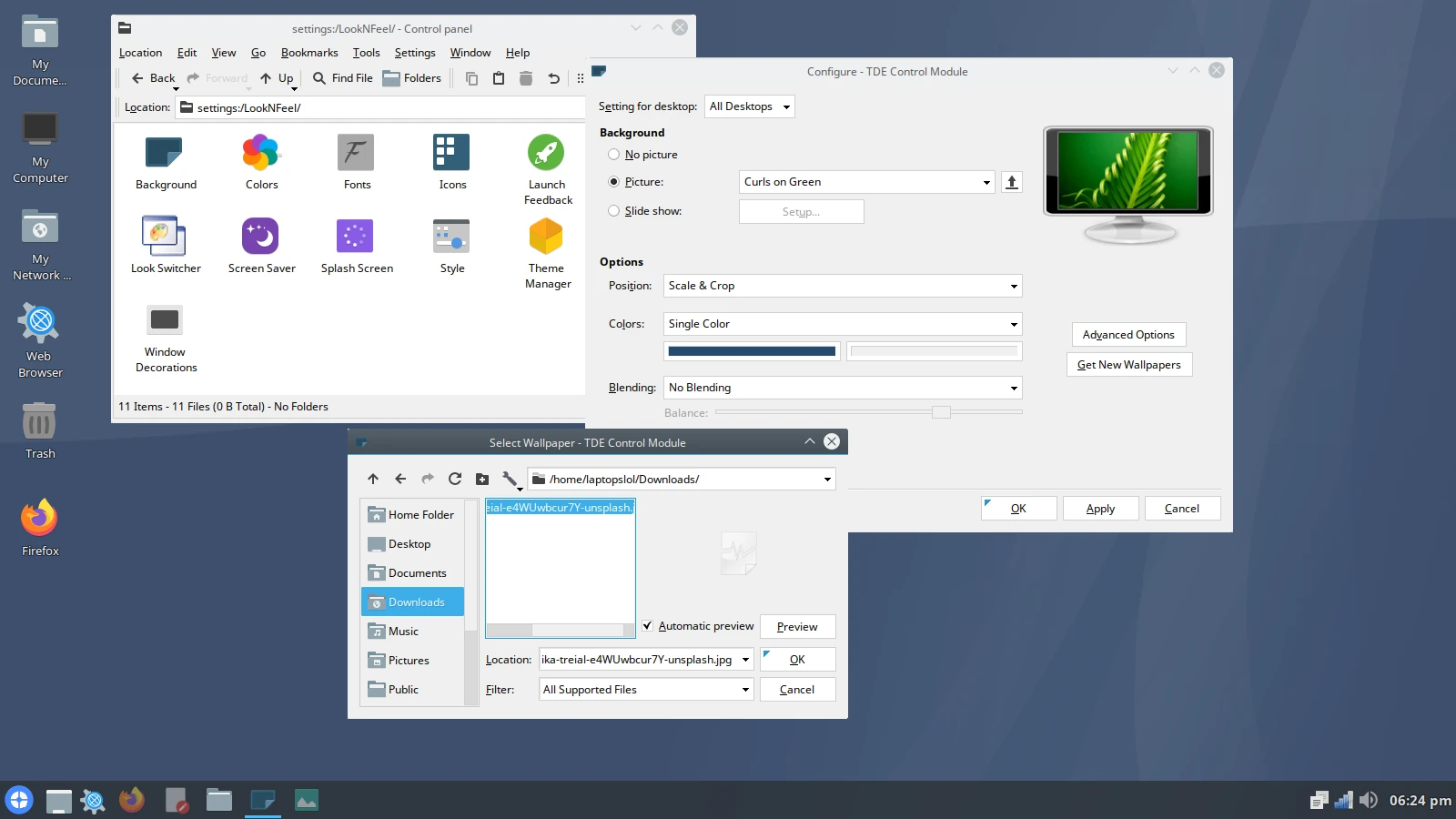
Next, download an image online you’d like to use as a background wallpaper. For this tutorial, we will use this image of a starry sky by Benjamin Voros. Then close your web browser for now. Click on User Files, a blue icon in the lower left side of the screen. Go into Downloads. Then double click or right click the image, select “Set as wallpaper.”
How to See Battery Level in Linux Lite

If you’re using a laptop, you may wonder how to see your battery’s charge percentage. Right click or double click the bar on the bottom of the screen. Then click on Panel, then Add New Items. Choose “Power Manager Plugin” to display battery charge level in the lower right corner of the screen. Click on the battery icon to change your screen’s brightness. Setting your screen to emit less light uses less energy, so the battery will last longer.
How to Take a Screenshot in Linux Lite
You can also add other items to this bar, like a Power Button and a Screenshot button. Screenshots will be saved in the Pictures folder by default, but you also have the option to select other folders.
How to Write a Document in Linux Lite

Click on Menu in the lower left corner of the screen. Then scroll up to Office, then right to Word Processor. This will open up LibreOffice Writer, an open-source program very similar to “Microsoft Word.” You can use it to type whatever you like. When you save a document, it will be saved to the Documents folder by default.
How to Turn Off Linux Lite Computer
To shut down your computer, click on Menu in the lower left corner. A small green icon will appear slightly above and to the right of “Menu.” Click on it and a new window will open, asking if you want to shut down the computer.
Alternatives to Linux Lite
Other good Linux distros for old laptops and other computers include:
- Zorin Lite – ideal for Windows users, very similar to Linux Lite
- Lubuntu – a lighter flavor of Ubuntu, one of the most popular Linux distros
- Bodhi Linux – a lightweight, customizable distro
- Puppy Linux – lightweight and customizable, but not for Chromebooks, due to hardware incompatibility issues