The name “Bodhi” comes from a Sanskrit term meaning “enlightenment.” As you would expect with a name like that, Bodhi Linux is a smart choice. It’s especially good for reviving old computers. It’s simple and easy to use, even for people who have never used Linux before.
Introduction to Bodhi Linux
It comes with many useful programs and even a few fun games, but it doesn’t have anything unnecessary that will cause slow loading times. If you’re considering switching to Linux, this is a great option.
The end of this article will discuss how to download and install Bodhi, but first, let’s go over why you might want to choose this operating system in the first place and how it works.
Starting with Bodhi Linux
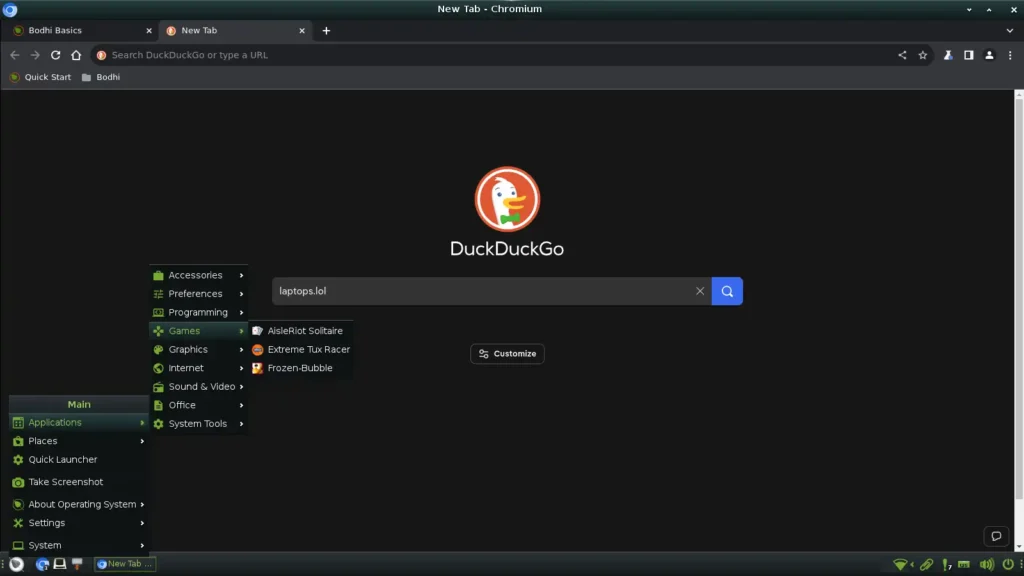
Take a look at this screenshot. It probably looks a lot like other computers you’ve used in the past. In the lower left corner of the screen, there is a small, round icon of a leaf. If you click on this, you will get a list of applications as well as some useful information and access to your settings.
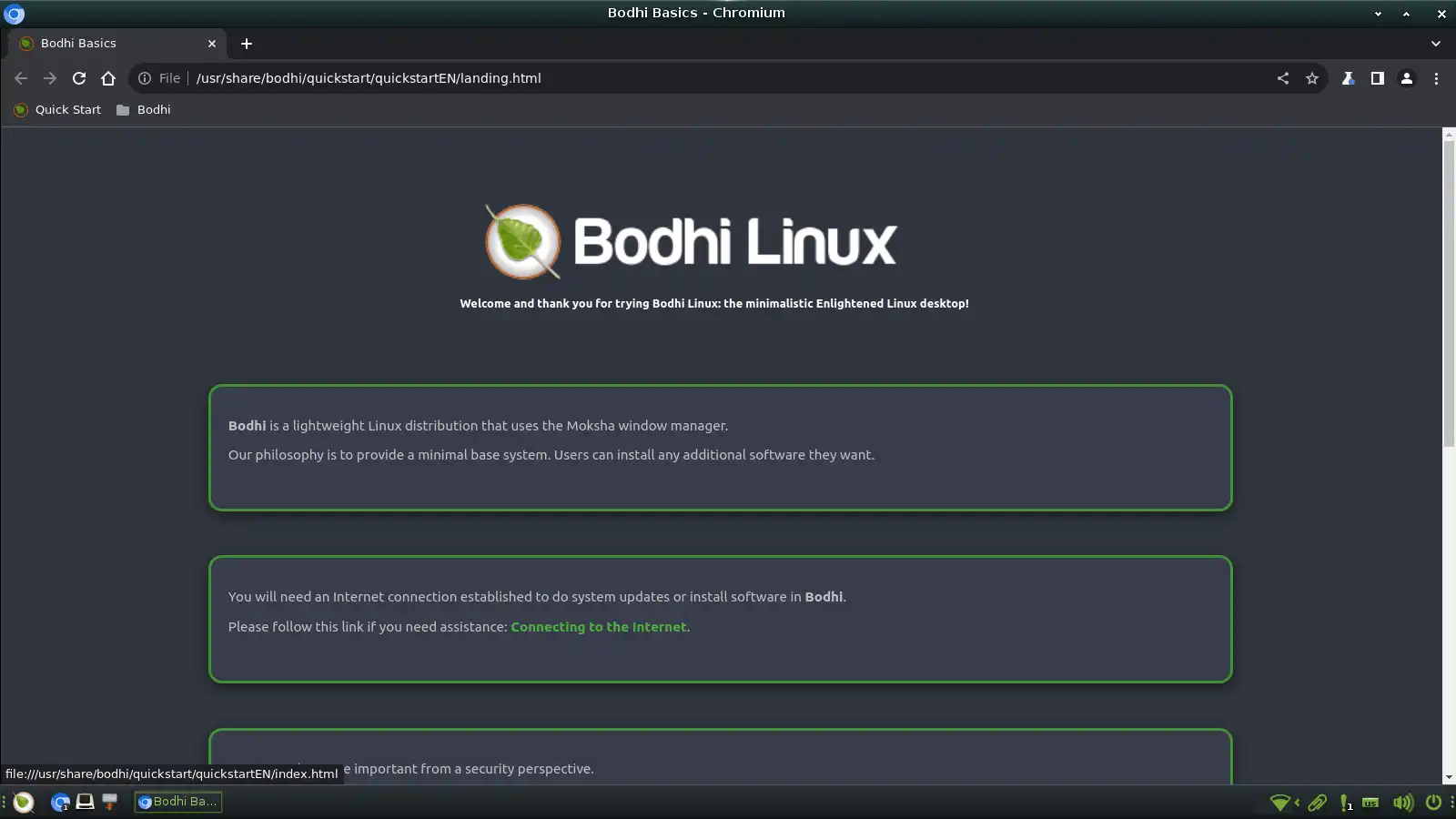
Just to the right of the leaf icon, you will see a small blue icon. This is Chromium, the default web browser. When you open Chromium for the first time, a “Bodhi Basics” page will open up with some useful tips. If you open a new tab, it will automatically go to the default search engine, DuckDuckGo. DuckDuckGo is known for tracking users less than some other popular search engines, like Google.
To the right of Chromium, the next icon opens up the terminal. You can use this to update your computer, to install more programs and so on.
To the right of the terminal, there is another gray icon. This is Thunar File Manager and it allows you to find and view all your files and folders.
Going further right, there are a few more icons in the other corner. The first (starting from the left) is where you can access your internet settings. Then the paper clip icon has everything you’ve recently saved to the clipboard. The exclamation point shows you notifications. After that, there is an icon showing what keyboard you are using. Then there is the volume settings button and finally, the power button for when you want to turn the computer off.
Programs on Bodhi Linux
The Bodhi Basics page describes Bodhi Linux as a “lightweight” and “minimal” Linux distrubution. This is true, but it doesn’t mean it is bare-bones. There are plenty of useful applications that come pre-installed.
The first category, Accessories, includes a few simple but useful programs like Mousepad (for writing plain text) and a calculator called “Qalculate!”
The second category, Preferences, allows you to adjust settings for things like Bluetooth. You can also set up a firewall if you like.
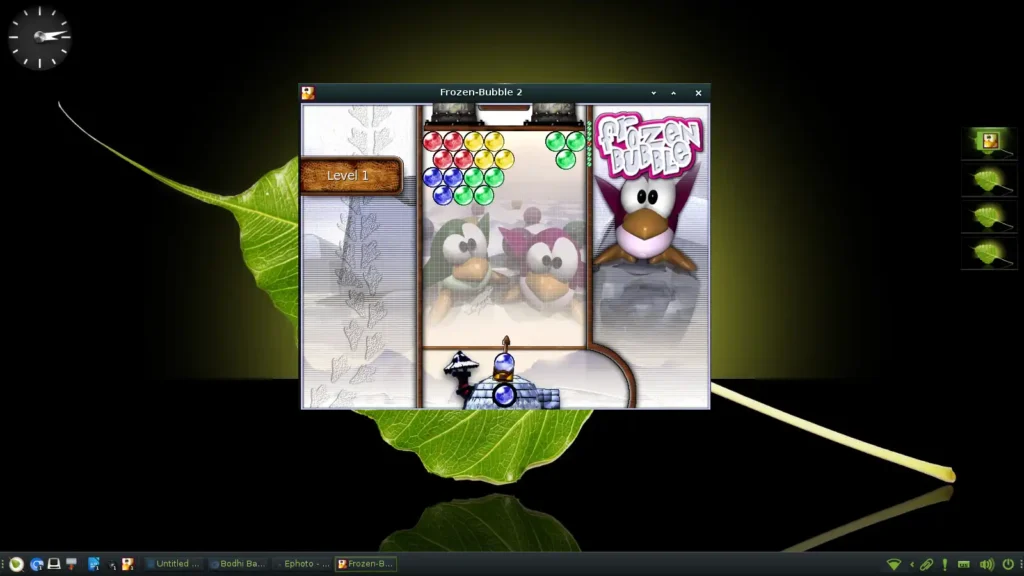
The third category is Programming, which is self-explanatory. The fourth category is Games. There is a solitaire game, a racing game, and a bubble popping game with cute penguins.
The fifth category is Graphics. You can use programs like Inkscape and GIMP to create art and edit photographs.
The sixth category is Internet, where you will find Chromium and other web-related programs. Next up is Sound and Video, where you can find music playing software. Then there is Office, which is full of useful tools like LibreOffice Writer, an alternative to Microsoft Word.
The final category is System Tools. You can find tools to tweak your computer’s settings here.
Bodhi Linux Versus Other Operating Systems
If your computer is an old Windows PC or Chromebook no longer receiving security updates, replacing the old OS with Bodhi Linux is a great way to extend its life, thereby saving you money and preventing e-waste.
Bodhi is also faster than some other popular Linux distributions, like Ubuntu, Edubuntu, Lubuntu, etc.
Installing Bodhi Linux
In order to install Bodhi, all you need to do is download it from the official Bodhi Linux website and put it on a USB flash drive. If you don’t have a flash drive lying around, you can buy one at the laptops.lol Zazzle store. Format it with a program like Rufus or Baleena Etcher, then plug it into your computer and restart.
In order to boot into Bodhi Linux, you will probably need to press a certain button while your computer is turning on. Each computer is different, but the button is usually one of the top keys like F2, F10 or F12. Once you find the right button, you will be able to select Bodhi from the BIOS menu. Then you can try it out or permanently install it from the get go.
If you need more help installing or using Bodhi, try asking folks at the Bodhi message boards.
Alternatives to Bodhi Linux
Bodhi Linux is ideal for people with old computers and people who like to keep things simple. Other excellent choices for reviving retro computers include Linux Lite, Fatdog 64, Q4OS, and Zorin Lite. Of these, Q4OS has the simplest installation process for Windows users.